For Chrome, Edge and Brave
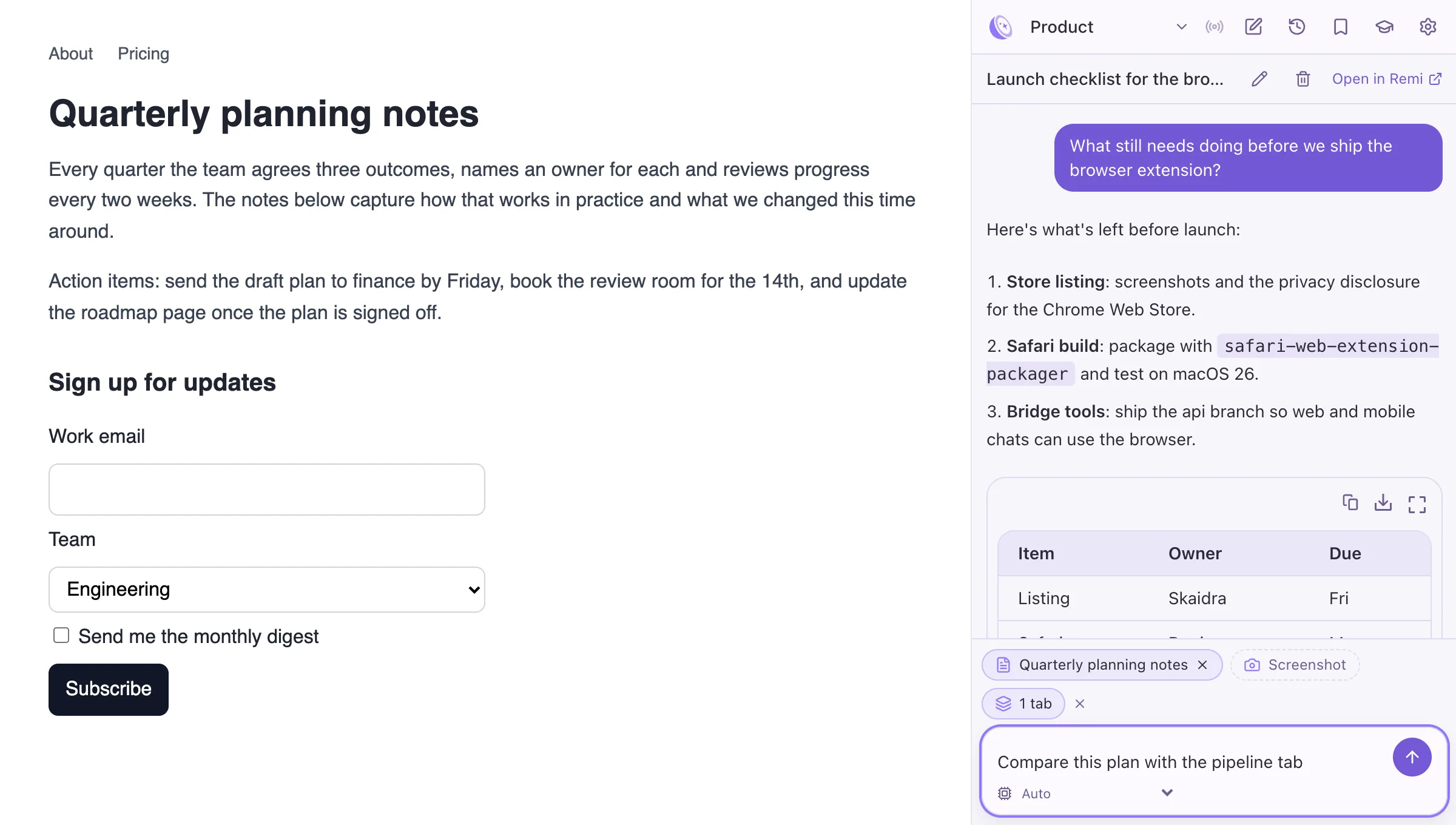
In testingAsk Remi about the page you're reading.
Remi opens in a side panel in Chrome, Edge, Brave and other Chromium browsers, with your whole workspace inside. It can read the page you're on, save what you find and work in your tabs, and it checks with you before it buys, sends or deletes anything.


From your phone
Ask on your phone and Remi does it in your browser.
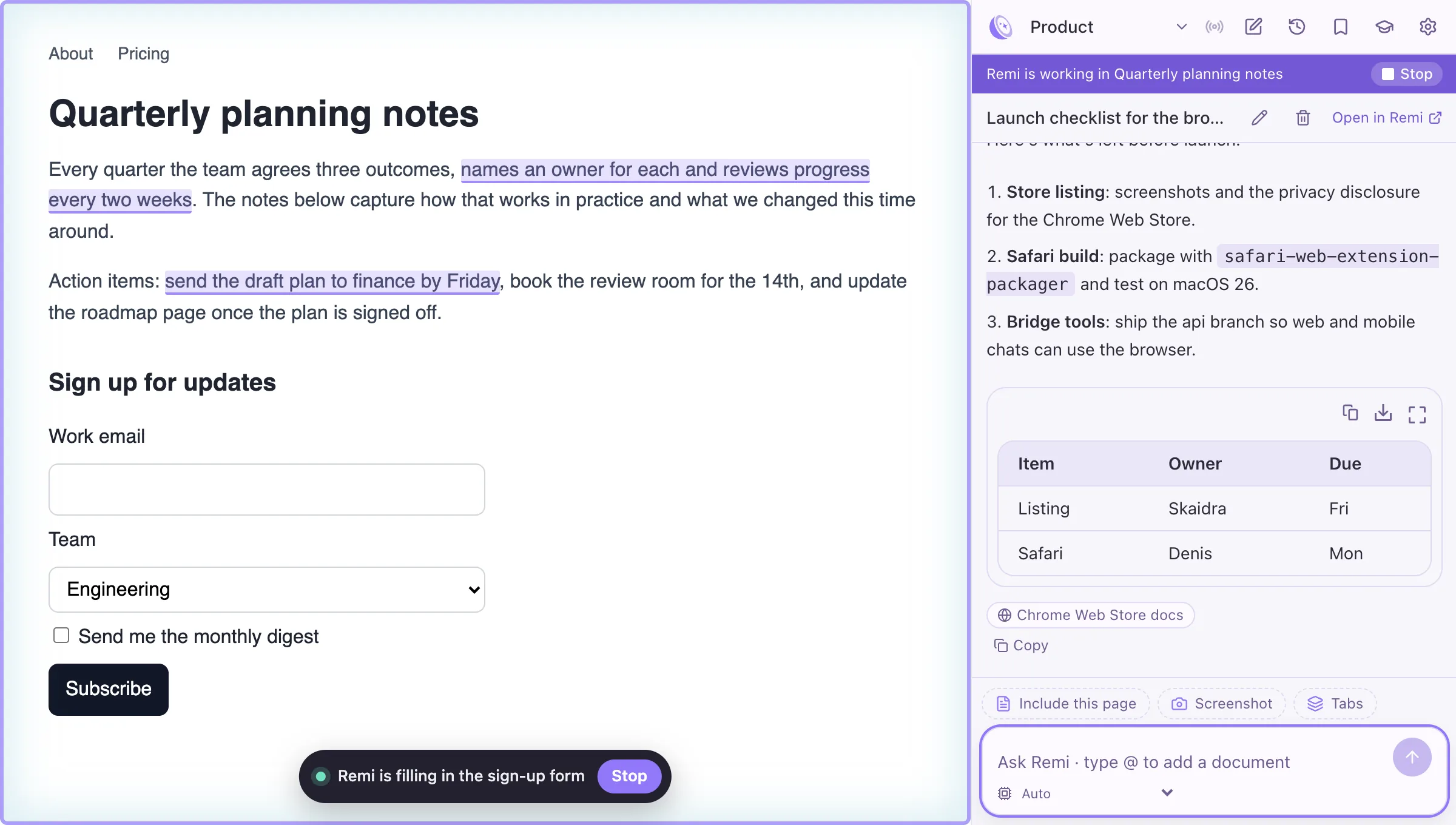
From a chat on the website or your phone, Remi can read your open tabs, click, type and fill in forms on the sites you're signed in to. A purple frame goes round the page it's working on, and there's a Stop button on the page and in the panel.
You can press Stop at any time.
In your tabs
What it does while you browse.
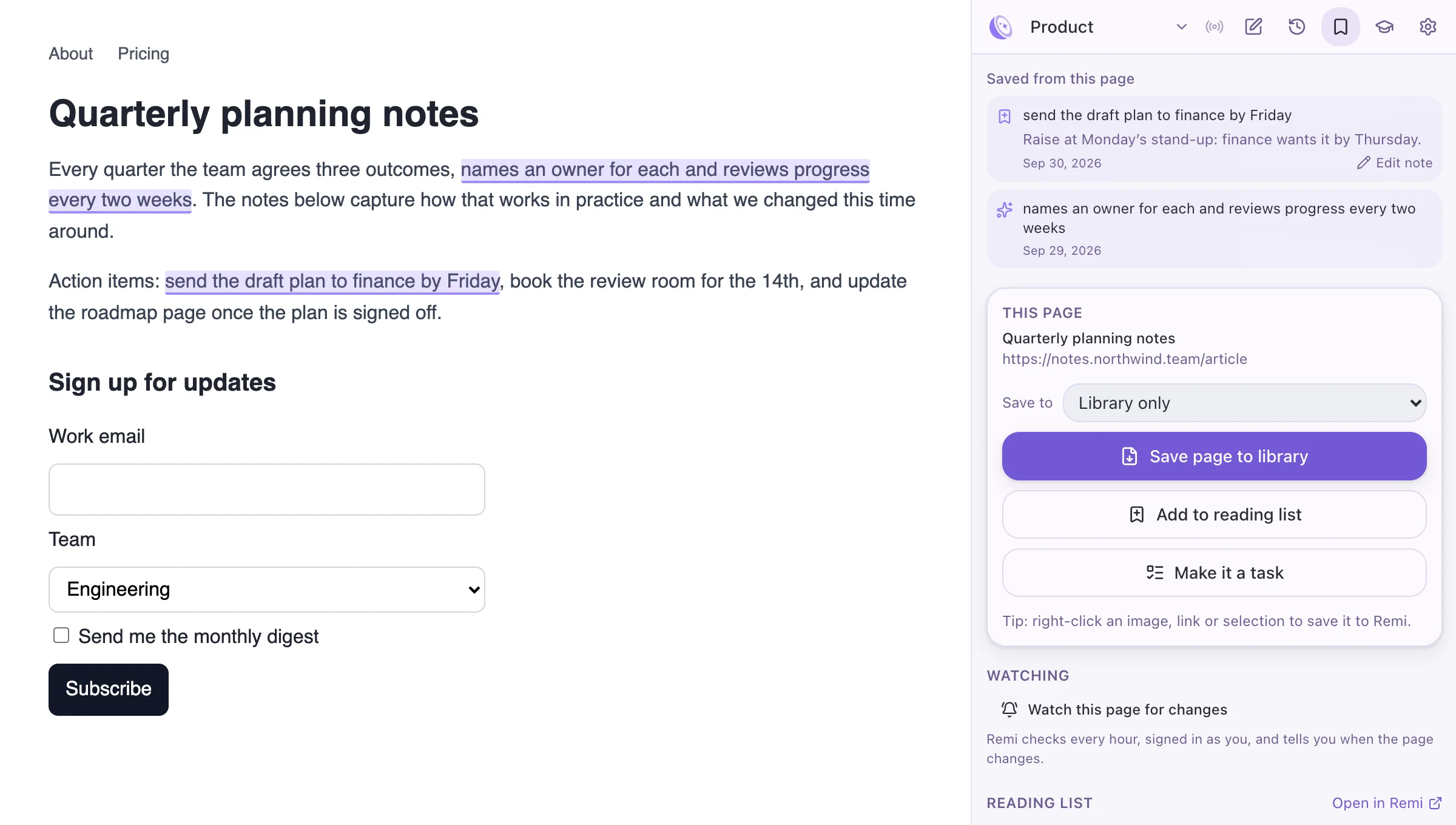
Save pages, clips and tables with your notes
Save a page to your library, a selection as a clip, task or memory, a link to your reading list, or a table as a Remi data table. What you saved is highlighted when you come back, with your notes beside it.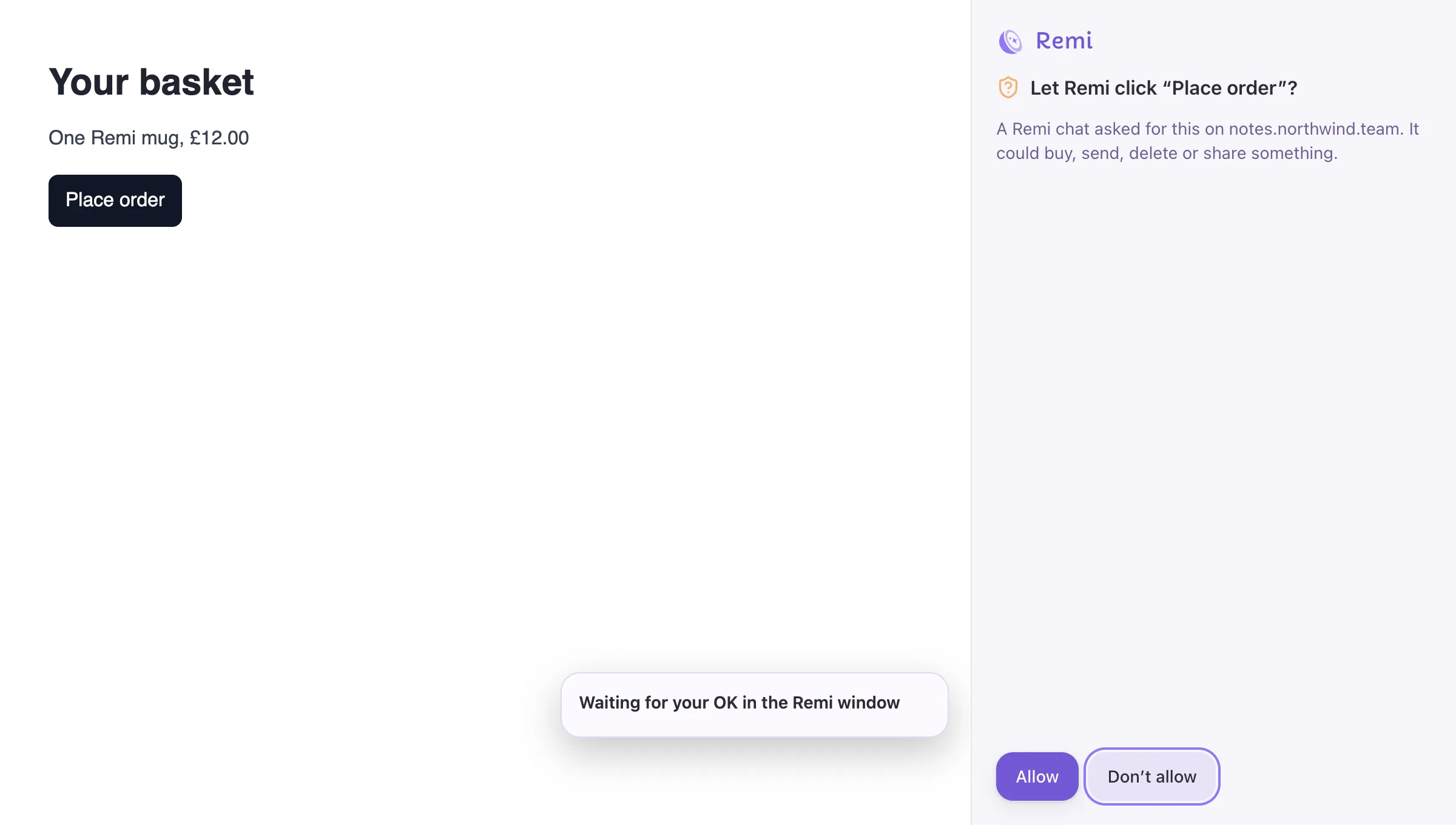
Nothing is bought or sent without your OK
Before Remi buys, sends, deletes, or fills in a password or card field, it asks you in a small Remi window the page can't reach. It only works on the sites you allow, and stays out of banking and payment sites unless you let it in.Show it once and Remi writes the steps down.
Teach it a task once
Do a task once while Remi watches, such as filing an expense. It writes each step down in words, never records passwords or card numbers, and saves the steps as a workflow any chat can run in this browser.
Installing and using the extension
Requirements
Sign in
What it can see
Update
Uninstall
- Requirements
- Sign in
- Click the Remi icon, or press Alt+R (Option+R on a Mac), choose Continue in your browser and approve it on remiapp.ai. Your workspaces, chats and settings are the same ones as on the web.
- What it can see
- It sees only the sites you allow, and you allow them one at a time. You can block any site or make it read-only. If a page contains instructions, Remi treats them as words on the page and never as a request from you, and nothing it reads is ever sold.
- Update
- Your browser updates it from the store automatically.
- Uninstall
- Right-click the Remi icon and choose Remove, or remove it on your browser's extensions page. That deletes everything it kept in this browser, but your chats and everything you saved stay in your Remi account.
Everywhere
Other places you can use Remi
- Remi DesktopOn your Mac or PCIn testingDownload
- Remi CLIIn your terminalIn testingInstall
- Remi for your browserBeside the page you're onYou're here
- Remi for iPhone and AndroidOn your phoneComing soonSee what's coming
- Remi on WhatsAppIn your WhatsApp chatsComing soonSee what's coming
Keep Remi open next to every tab.
The panel has your workspace's chats from the web, your phone and Remi Desktop, so you can carry on next to the page you're on. Search them down to a single message, and read recent ones offline.
Remiremiapp.ai